How to take a full-page screenshot in Chrome
Capture a whole web page, not just what fits on screen: the built-in DevTools command, the problems with long pages, and capturing every device size at once.
A screenshot of the visible part of a page is one keystroke. A screenshot of the whole page, from header to footer, takes a little more, and very long pages bring problems of their own.
The built-in way: DevTools
- Open DevTools (F12, or Ctrl+Shift+I / Cmd+Option+I).
- Open the command menu with Ctrl+Shift+P (Cmd+Shift+P on a Mac).
- Type full size and choose Capture full size screenshot.
Chrome saves a PNG of the entire page at the current width. To capture a phone layout, turn on the device toolbar first and pick a device; the screenshot uses its size and pixel ratio.
Why full-page shots go wrong
- Lazy images below the fold may still be placeholders. Scroll to the bottom once before capturing.
- Fixed and sticky elements such as headers and chat buttons can appear in odd places or be repeated.
- Full-height sections sized with
100vhgrow to the height of the capture and turn into huge empty blocks. - Very long pages hit the size limit of an image in the browser, about 16,384 pixels, and come out cut or blank.
- Animations triggered on scroll may not have run, leaving sections invisible.
Every device size, in one go
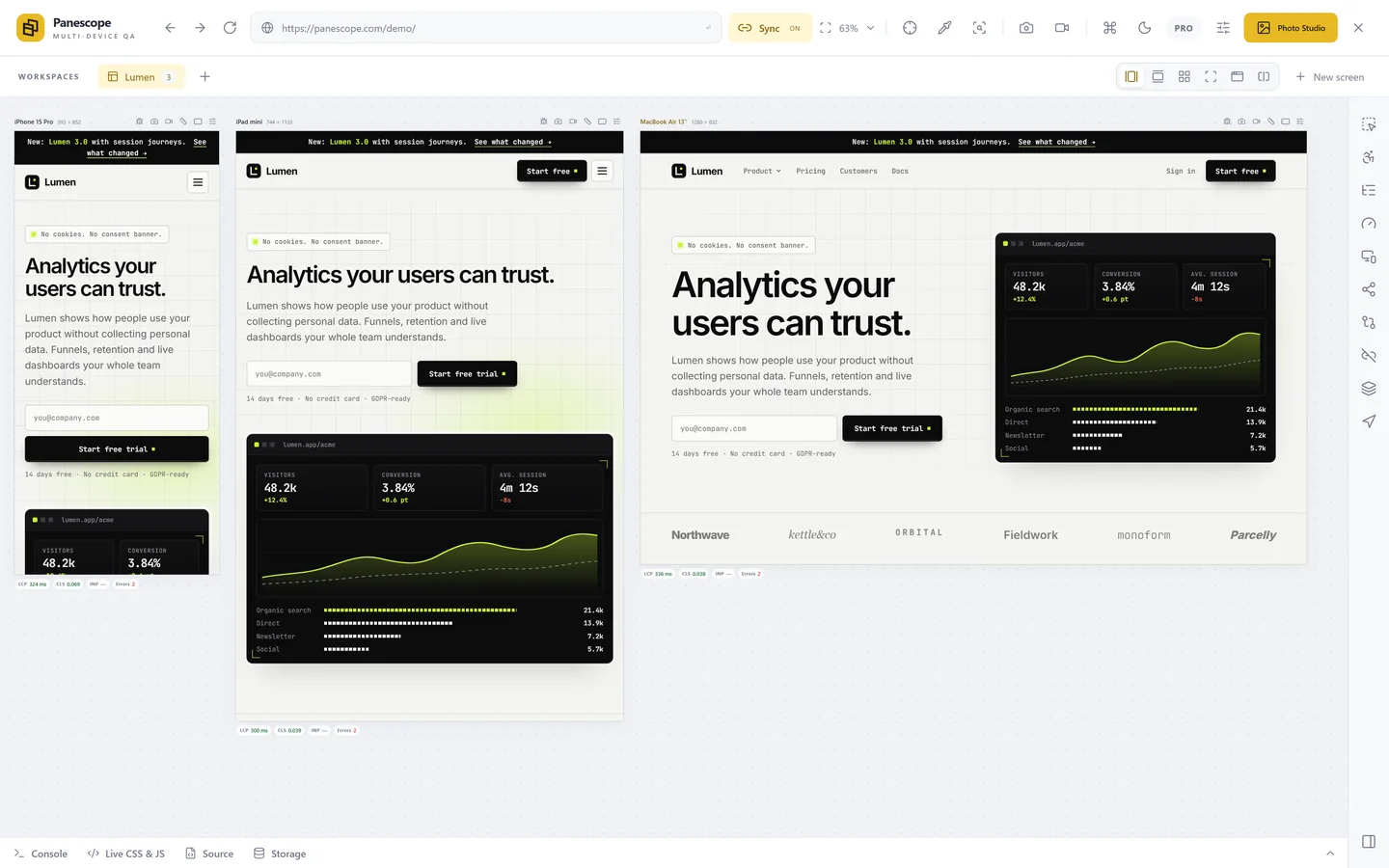
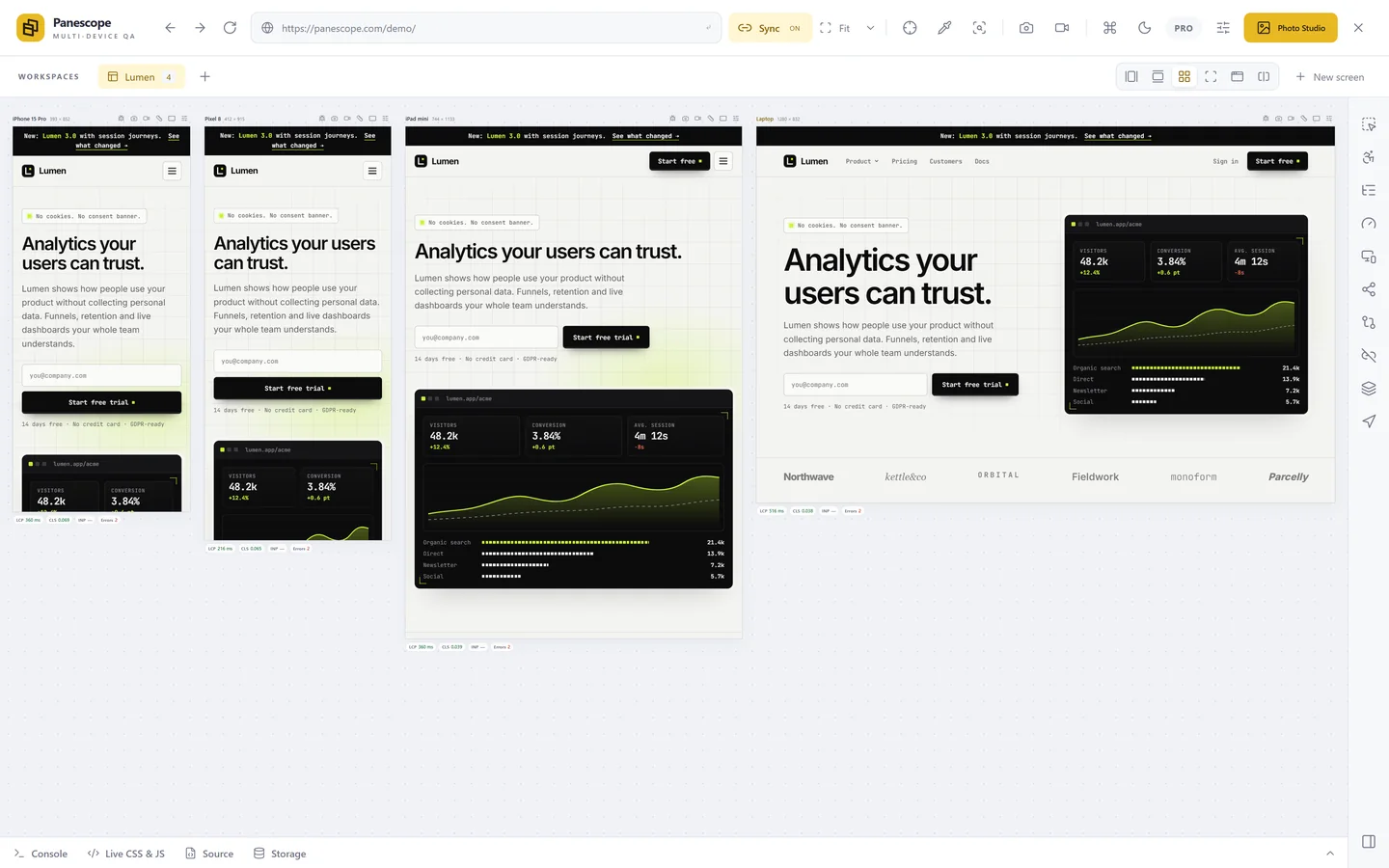
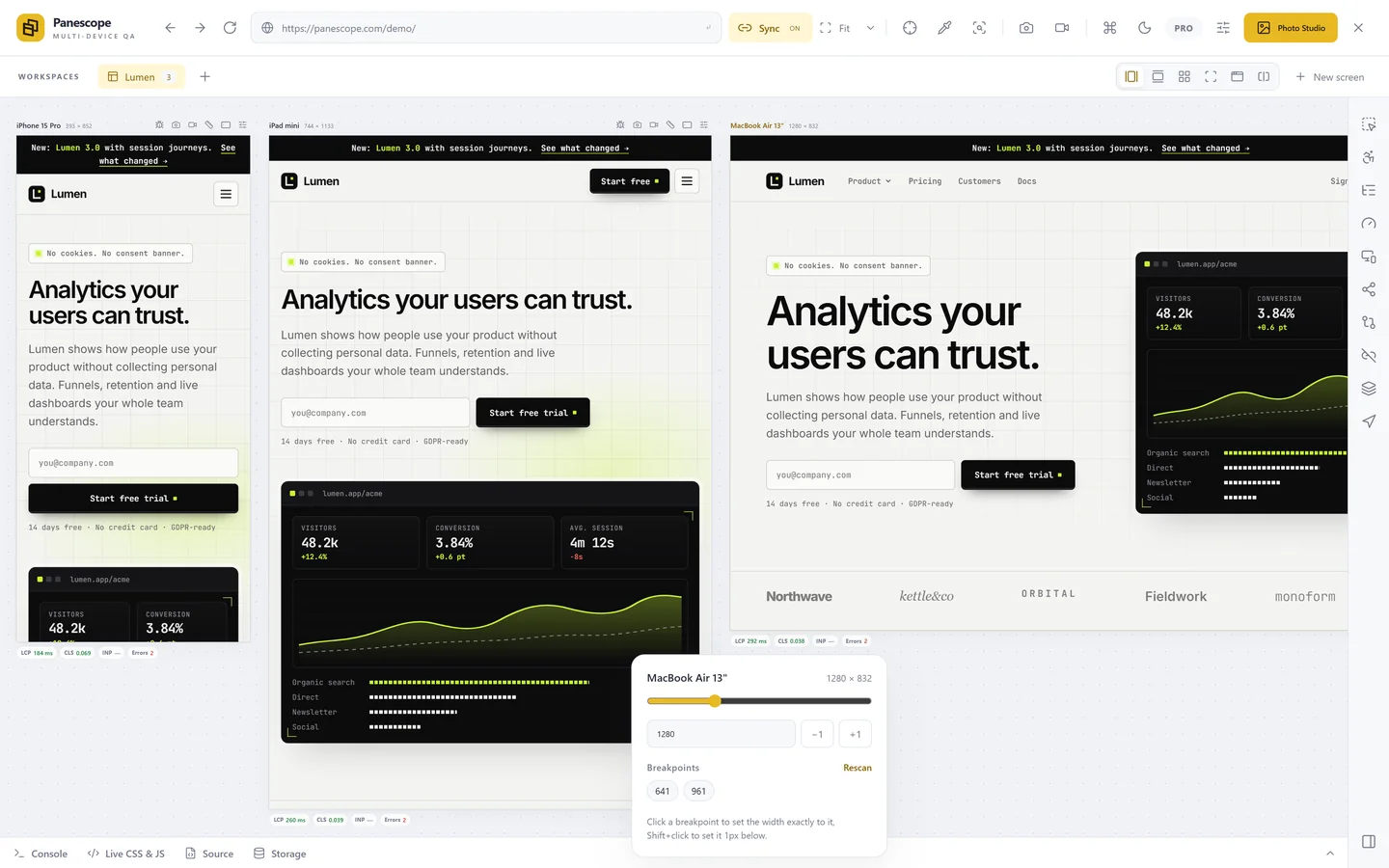
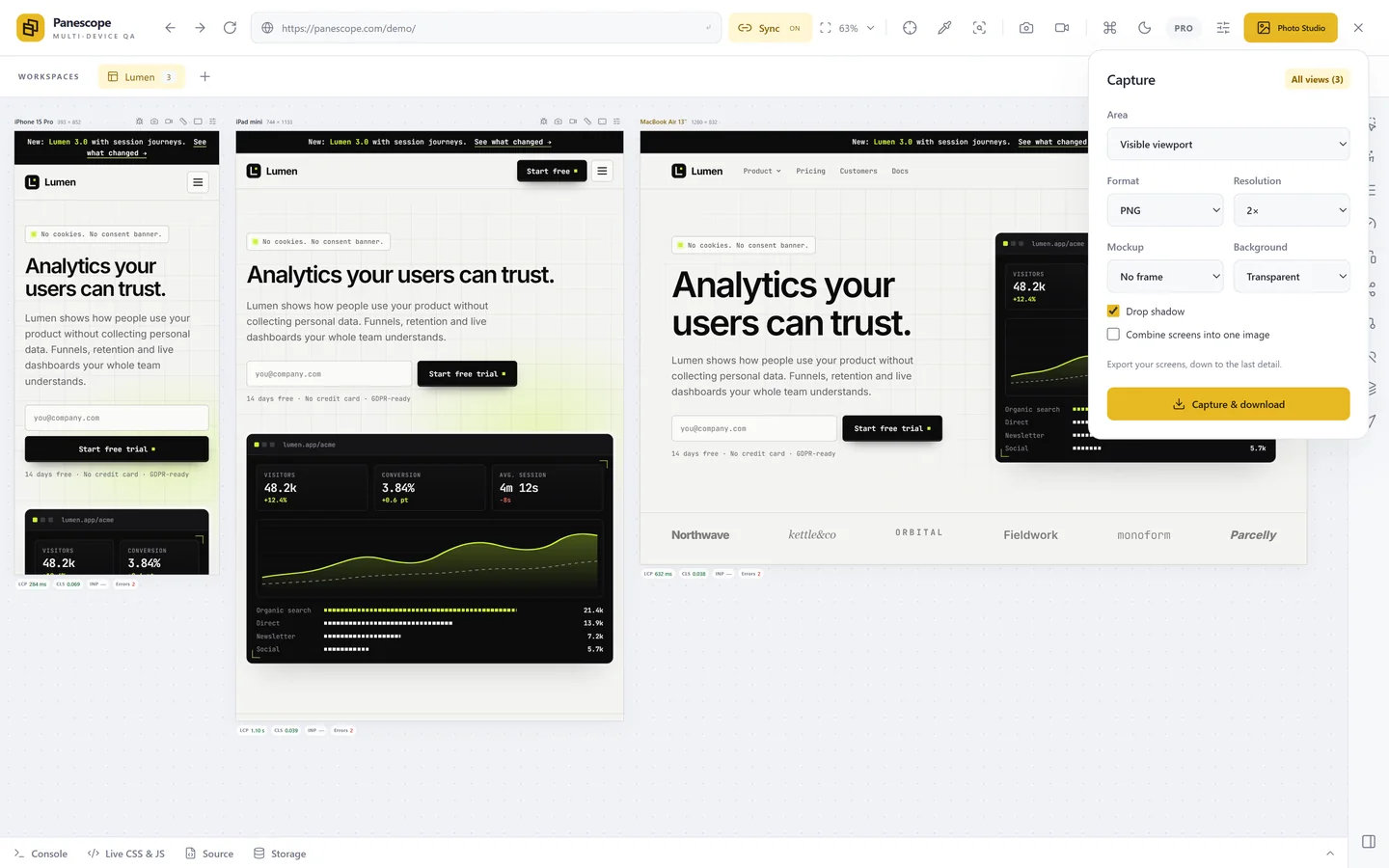
When you need the same page on a phone, a tablet and a laptop, Panescope's capture panel takes all screens at once, visible part or full page, and downloads them as one ZIP. Captures go up to 16× resolution for print or retina mockups; scrollbars can be hidden, and pages too long for one image are saved in parts that continue exactly where the previous one stopped.
Panescope is free for up to 3 screens. Pro for 3 days, no card needed.